
|
Use your pdf converter to make your pdf files easy! You can now buy software that makes converting pdf to doc possible! Did you know you can even convert pdf to word? Home Page Bloglines 1906 CelebrateStadium 2006 OfficeZealot Scobleizer TechRepublic AskWoody SpyJournal Computers Software Microsoft Windows Excel FrontPage PowerPoint Outlook Word 

Host your Web site with PureHost! 
|
 
Wednesday, May 09, 2018 – Permalink – List Box FilterMultiple selectionsFilter a Report based on List Box Fabalou.com: "How to open a report based on a multiple selection in a list box. For example, you may have a list of makes of car and a report that shows various details for each make of car. You want to allow the users to select a range of cars and pull up the report according to that selection." Microsoft KB: How to Use a Multi-Select List Box to Filter a Form See all Topics access <Doug Klippert@ 3:17 AM
Comments:
Post a Comment
Friday, April 20, 2018 – Permalink – Week NumbersWho's counting?For most purposes, weeks are numbered with Sunday considered the first day of the week. This works most of the time, but it can be a little confusing certain years. 2004 had 53 weeks. January 1 is the only day in the first week of 2005. Week 2 starts on Sunday 1/2/2005. Chip Pearson is the Date and Time guy: Week Numbers In Excel "Under the International Organization for Standardization (ISO) standard 8601, a week always begins on a Monday, and ends on a Sunday. The first week of a year is that week which contains the first Thursday of the year, or, equivalently, contains Jan-4. The first week of 2005 should start on January 3. The first and second would be part of week 53 of 2004. Wikipedia: Week Dates If your week starts on a different day, you can use the Analysis ToolPac function: =WEEKNUM(A1, 2) for a week that starts on Monday, =WEEKNUM(A1) if it starts on Sunday. Also this from ExcelTip.com: Weeknumbers using VBA in Microsoft Excel "The function WEEKNUM() in the Analysis Toolpack addin calculates the correct week number for a given date, if you are in the U.S. The user defined function shown here will calculate the correct week number depending on the national language settings on your computer." In Access: DatePart Function If your work week is always Saturday through Friday then datepart("ww",[DateField],7,1) will return 1 for 1/1/2005 through 1/7/2005, 2 for January 8-14/2005, etc. Otherwise use 1 for Sunday through 7 for Saturday. The last number sets these parameters: 1, Start with week in which January 1 occurs (default). 2, Start with the first week that has at least four days in the new year. 3, Start with first full week of the year. See all Topics access <Doug Klippert@ 3:24 AM
Comments:
Post a Comment
Sunday, April 15, 2018 – Permalink – Reminder-task OutlookSent from Access"If you have a table that contains a date field, and you want to make sure that something happens on that date, one way is to create an Outlook task with a reminder that will pop up on the specified date; you can even use the Outlook reminder to create an email message that will be sent on the specified date. The file is located on Helen Feddema's site. Access Archon Scroll down to #126 The zip file contains the WAW article, in Word format, plus the supporting file. Helen Feddema has been working with Word since v. 1.1, Access since the beta of v. 1.0, and Outlook since the beta of v. 8.0 (that's where Outlook started its version numbering). See all Topics access <Doug Klippert@ 3:19 AM
Comments:
Post a Comment
Wednesday, April 11, 2018 – Permalink – Form and DataGood comboIn Access, tables can be a bother to use for data entry. Constructing a Form can make it easier. Here is an MS demo about combining the two: "While working with forms, a split form can be a very useful view because you simultaneously get two views of the form that are connected to the same data source. Demo Form and data 
See all Topics access Labels: Customize, Entries, Forms, General, Reference, Shortcuts, Tips, Tutorials <Doug Klippert@ 3:12 AM
Comments:
Post a Comment
Tuesday, March 13, 2018 – Permalink – Display the Current Record NumberWithout navigationYou may want to remove the navigation buttons from an Access form but still display the current record number. Not the ID or serial number, but the record number that would appear in the navigation box. To provide this feature, you can use VBA to place the form's CurrentRecord value in an unbound text box, and then update the value during the Current event. To utilize this property, add an unbound text box to your form in Design view. Then, on the Event tab of the form's Property list, click the ellipsis or Build button. Choose Code Builder. Add the following code in the Visual Basic Editor: (where MyTextBox is the name of the control that displays the record number.) Now, when you navigate from record to record, the MyTextBox control will update automatically to reflect the current number. See all Topics access Labels: Customize, General, Macros, Reference, Shortcuts, Tips, Tutorials, VBA <Doug Klippert@ 3:09 AM
Comments:
Post a Comment
Saturday, March 10, 2018 – Permalink – Quick Subforms and SubreortsDrag 'em on overWhen you need to create a subform or subreport, you probably use the Subform/Subreport tool from the Toolbox to draw where you want to add the control. You can also create subform and subreports using drag and drop. Simply open the main form or report in Design view, then drag the appropriate form or report from the Database window to where you want the control created. Note that you'll still need to set Link Child Fields and Link Master Fields properties on the new control. See all Topics access Labels: Customize, Forms, General, Reference, Reports, Shortcuts, Tips, Tutorials <Doug Klippert@ 3:32 AM
Comments:
Post a Comment
Tuesday, March 06, 2018 – Permalink – Filter Multiple FieldsTable sortsIn a table's Datasheet view, you can filter multiple selections in a few simple ways. In the first method, you select one of the fields you want to filter by and click the Filter By Selection button on the toolbar. Access filters the records by that selection. Next, select the second field you want to filter by and click the button again. Access filters the records even further by this second selection. Continue to follow these steps until you have filtered by the desired number of selections. You can also use Filter by Form. Click the icon on the toolbar. In the displayed form, enter the criteria. You can use And/Or statements, such as "Boston" Or "San Francisco". (Access will enter the quote marks for you.) For the third option, you use the Advanced Filter>Sort feature. To do so, select Records>Filter>Advanced Filter>Sort from the menu bar. Access displays a grid similar to the Query By Example grid. Now, drag down all the fields you want to filter by from the field list. Then, in the Criteria cells enter the values you want to filter for. When you have finished, click the Apply Filter button to see the results. Fourth, you could use Filter by input. Right click any entry in a field you want filtered. Enter the value in the Filter For box and hit Enter. You could then choose another field and sort again by another criteria. Creating a Query would let you save your filter, but these methods can be used to quickly display the desired information in a table. (In 2007+ these options are on the Home tab in the Sort & Filter group) eHow.com: How to Filter Records in a Microsoft Access Table Microsoft Kb: How to filter records in an Access database See all Topics access <Doug Klippert@ 3:19 AM
Comments:
Post a Comment
Saturday, March 03, 2018 – Permalink – Email Access FormQuestion and collectionAccess 2007-10 has a wizard that will walk you through the process of sending an information gathering form through Outlook. The wizard is on the External Data tab in the Collect Data group.  "You begin with the Collect Data Through E-mail Messages Wizard, which guides you through the steps of creating a form. Collect data by using e-mail See all Topics access Labels: E-mail, Forms, General, Internet, Reference, Shortcuts, Tips, Tutorials <Doug Klippert@ 3:41 AM
Comments:
Post a Comment
Tuesday, February 20, 2018 – Permalink – Convert Access Macros to VBAMacros to ModulesBefore Access 2000, the speculation was that Access would lose "Macros" and enter the exclusive world of VBA. It hasn't happened yet. If you have macros in a database that you would like to convert to code, doing so is easy. In Access 97: Right-click on the macro in the Database window and then choose Save As/Export from the shortcut menu. Then, select the Save As Visual Basic Module option button and click OK. You are then given the option of adding error handling functions and comments to the new module. Select the options you want and click Convert. In Access 2000/2002+: Right-click on the macro in the Database window and then choose Save As from the shortcut menu. Enter the name of the module you want to create in the text box and choose Module from the As dropdown list. Next, click OK. You will be given the option of adding error handling functions and comments to the new module. Select the options you want and click Convert. In 2007 go to Database Tools and look in the Macros group. Pearson Informit: Taking More Control of Access By Gordon Padwick. Access 2007 introduced a new type of macros called embedded macros. Embedded macros are macros that are stored on an event instead of as a separate object. Embedded macros support name fix-up and are used extensively through-out our templates. They are largely targeted to information workers that don’t write code but useful for developers that are trying to perform some simple actions. See all Topics access Labels: Customize, General, Macros, Reference, Shortcuts, Tips, Tutorials, VBA <Doug Klippert@ 3:21 AM
Comments:
Post a Comment
Sunday, February 18, 2018 – Permalink – What the ####Truncated NumbersAccess has a new option that will show octothorps when the column is too narrow to display the entire value. When this option is not enabled, you see only part of the values in a column rather than ####. You'll find the selection under Access Options when you click the Office button. Go to Current Database and make your choice. 
See all Topics access Labels: Customize, Entries, General, Reference, Shortcuts, Tips, Tutorials <Doug Klippert@ 3:09 AM
Comments:
Post a Comment
Sunday, February 11, 2018 – Permalink – Copy Access Data to New RecordsFewer stepsThe Paste Append feature is often overlooked in Access. This feature lets you quickly create new records that copy existing information from other records. To see one way to use the feature, open a table in Datasheet view.
See all Topics access Labels: Entries, General, Reference, Shortcuts, Tips, Tutorials <Doug Klippert@ 3:21 AM
Comments:
Post a Comment
Thursday, February 01, 2018 – Permalink – Resize FormIt's fittingWhen you switch between Design and Form views, the size of the form is dictated by the size of the Design view window, not the size of the form sections. You often need to expand the window to be able to see the rulers and scroll bars in addition to all of the sections. This means you're left with wasted space when viewing the form in Form view, assuming that you forget to shrink the window back down. A solution to this annoyance is to use the Size To Fit Form feature. Simply view the form in Form view and choose Window>Size To Fit Form from the menu bar. If your view of the form is maximized, the menu option will be unavailable and you'll need to click the Restore Window button on the form window to enable the choice. Once Access has resized the form, you can save its current dimensions by clicking the Save button. With Access 2007+ go to the Office button, choose Access Options and click Overlapping Windows. The Size To Fit Form icon will appear on the Home tab. 
See all Topics access Labels: Customize, Forms, General, Reference, Shortcuts, Tips, Tutorials <Doug Klippert@ 3:01 AM
Comments:
Post a Comment
Thursday, January 25, 2018 – Permalink – Quickly Query Table NamesChange by codeIf you've ever developed a dozen or more complex queries, then had to change one of the table names, you know how frustrating it can be to all but rebuild the queries in the Query Design view grid by changing the table name in each cell. One quick alternative is to choose View >SQL View while the query is open and then cut and paste all the SQL code into Word. Next, do a Find and Replace, changing all the instances of the old table name to the new table name. Finally, copy and paste the SQL statements back into the SQL view of your Access queries. When you go back to the QBE, the new table will replace the old one. 
See all Topics access Labels: General, Queries, Reference, Shortcuts, Tables, Tips, Tutorials <Doug Klippert@ 3:06 AM
Comments:
Post a Comment
Saturday, January 20, 2018 – Permalink – Add Objects to the Query GridEasy additionsIf you need to add a table or query to a query you're building in Design view, you most likely click the Show Table button, drag the appropriate objects from the resulting dialog box, and then close the dialog box. However, there's a much easier way to do this. Simply drag the table or query object's icon directly to the gray background of the query design grid. This same technique also works with the Access Relationships window. See all Topics access Labels: General, Queries, Reference, Shortcuts, Tips, Tutorials <Doug Klippert@ 3:16 AM
Comments:
Post a Comment
Tuesday, December 05, 2017 – Permalink – Send Access to WordReformat reportsNot everyone has Access installed on his or her machine. Access is not the most versatile instrument for complex formatting. If you wish to share your findings, Access does have the ability to re-format Reports into Word documents. Open the Report in Access and go to Tools>Office Links. One of the choices is to "Publish It with Microsoft Word." Here's the command in 2007+:  When the data is sent to Word, you will be asked to confirm that you wish to convert the file to "Rich Text Format (RTF)" Click OK. (RTF is a "universal" format. The Report can be re-saved as a Word "DOC" or "DOCX" file.) Microsoft KB: How to send the current record to Word with automation Use a table or query as a mail-merge data source (2007+) See all Topics access Labels: General, Merge, Reference, Shortcuts, Tips, Tutorials <Doug Klippert@ 3:07 AM
Comments:
Post a Comment
Friday, December 01, 2017 – Permalink – Update Data to DefaultJust a keystroke awayYou probably know that you can set up a default value for Access to enter into a field when a new record is created. This can be done in the Design view for a table or form by setting the Default Value property. Unfortunately, you sometimes may set a default value after you've already entered records into the database. When you do so, the existing records aren't automatically updated to equal the new default. However, if you're editing a record and you want to update the field to the current default, you can do so with a keystroke shortcut. To do so, simply select the appropriate field and press [Ctrl][Alt][Spacebar]See all Topics access <Doug Klippert@ 3:54 AM
Comments:
Post a Comment
Saturday, November 25, 2017 – Permalink – Print Raw DataFrom reports and formsSometimes, you may not want to go to the effort of creating a report; you just need a quick hardcopy of data. In such cases, you can simply print the Form view of your data. However, doing so also prints the background and shading associated with the form. If you just need a quick data reference, you probably don't want to waste the resources and time to print such a detailed view. Fortunately, Access has a feature that lets you quickly print just the data from a form or report. To do so, view the data you want to print in the form or report. Then, choose: Office button>Print>Print Preview (File >Page Setup) select the Print Data Only check box and click OK. Doing so hides any graphics, lines, control borders, and label controls so that the print out simply contains data. 
See all Topics access <Doug Klippert@ 3:02 AM
Comments:
Post a Comment
Friday, November 03, 2017 – Permalink – Total FooterSum() it upIf you would like to show a total in the footer or each page of a report, you may have a problem. Access does not allow the SUM() function in the footer. The way around this is to put a SUM() function in an unbound text box in another part of the report. Choose Properties and set the visible property of the control to No. In the footer, create another control using the "calculation" text box as the ControlSource. The Sum() function, as well as the other aggregate (totals) functions can reference only a field and not a control. From the Microsoft Knowledge base: How to Sum a Calculation in a Report How to Display and Total Subtotals from Subreports See all Topics access Labels: Customize, General, Reference, Shortcuts, Tips, Tutorials <Doug Klippert@ 3:12 AM
Comments:
Post a Comment
Thursday, October 26, 2017 – Permalink – Insert Line Breaks With CodeLabel CaptionsIf you've ever needed to insert line breaks in a message box prompt, you most likely built a string that incorporated a line feed or carriage return character. Unfortunately, label objects aren't as forgiving when it comes to using these characters. If you're setting a label's Caption property with code, you'll find that the special control characters are interpreted as squares, since they're otherwise un-displayable. To successfully insert a line break in a label caption, you need to include both a line feed character and a carriage return character, entered consecutively. To do so, you can use the Chr() function, such as: Me.Label1.Caption = "Line 1" & _ Chr(13) & Chr(10) & "Line 2" However, you can also simplify your code using an built-in constant: Me.Label1.Caption = "Line 1" & vbCrLf & "Line 2" See all Topics access <Doug Klippert@ 3:06 AM
Comments:
Post a Comment
Wednesday, October 25, 2017 – Permalink – Zoom BoxBetter viewAccess does not provide much room to enter long expressions in queries, forms, or reports. You can drag the column wider, but there is a neater, quicker method. With the insertion point in the field, hit: SHIFT+F2. A Zoom box opens. Enter the formula and hit OK. 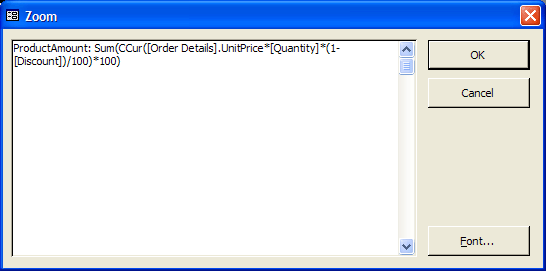 BTW: If you enter Field names in the Zoom box without square brackets, if the fields are recognized, Access will add the brackets. See all Topics access <Doug Klippert@ 3:38 AM
Comments:
Post a Comment
|
