
|
Use your pdf converter to make your pdf files easy! You can now buy software that makes converting pdf to doc possible! Did you know you can even convert pdf to word? Home Page Bloglines 1906 CelebrateStadium 2006 OfficeZealot Scobleizer TechRepublic AskWoody SpyJournal Computers Software Microsoft Windows Excel FrontPage PowerPoint Outlook Word 

Host your Web site with PureHost! 
|
 
Wednesday, April 11, 2018 – Permalink – Form and DataGood comboIn Access, tables can be a bother to use for data entry. Constructing a Form can make it easier. Here is an MS demo about combining the two: "While working with forms, a split form can be a very useful view because you simultaneously get two views of the form that are connected to the same data source. Demo Form and data 
See all Topics access Labels: Customize, Entries, Forms, General, Reference, Shortcuts, Tips, Tutorials <Doug Klippert@ 3:12 AM
Comments:
Post a Comment
Saturday, March 10, 2018 – Permalink – Quick Subforms and SubreortsDrag 'em on overWhen you need to create a subform or subreport, you probably use the Subform/Subreport tool from the Toolbox to draw where you want to add the control. You can also create subform and subreports using drag and drop. Simply open the main form or report in Design view, then drag the appropriate form or report from the Database window to where you want the control created. Note that you'll still need to set Link Child Fields and Link Master Fields properties on the new control. See all Topics access Labels: Customize, Forms, General, Reference, Reports, Shortcuts, Tips, Tutorials <Doug Klippert@ 3:32 AM
Comments:
Post a Comment
Saturday, March 03, 2018 – Permalink – Email Access FormQuestion and collectionAccess 2007-10 has a wizard that will walk you through the process of sending an information gathering form through Outlook. The wizard is on the External Data tab in the Collect Data group.  "You begin with the Collect Data Through E-mail Messages Wizard, which guides you through the steps of creating a form. Collect data by using e-mail See all Topics access Labels: E-mail, Forms, General, Internet, Reference, Shortcuts, Tips, Tutorials <Doug Klippert@ 3:41 AM
Comments:
Post a Comment
Thursday, February 01, 2018 – Permalink – Resize FormIt's fittingWhen you switch between Design and Form views, the size of the form is dictated by the size of the Design view window, not the size of the form sections. You often need to expand the window to be able to see the rulers and scroll bars in addition to all of the sections. This means you're left with wasted space when viewing the form in Form view, assuming that you forget to shrink the window back down. A solution to this annoyance is to use the Size To Fit Form feature. Simply view the form in Form view and choose Window>Size To Fit Form from the menu bar. If your view of the form is maximized, the menu option will be unavailable and you'll need to click the Restore Window button on the form window to enable the choice. Once Access has resized the form, you can save its current dimensions by clicking the Save button. With Access 2007+ go to the Office button, choose Access Options and click Overlapping Windows. The Size To Fit Form icon will appear on the Home tab. 
See all Topics access Labels: Customize, Forms, General, Reference, Shortcuts, Tips, Tutorials <Doug Klippert@ 3:01 AM
Comments:
Post a Comment
Thursday, November 23, 2017 – Permalink – Zoom Box FontsCustomizeChange the appearance of text in Access' Zoom box Access' Zoom box, allows you to display the contents of a text box in a dialog box for easier editing and viewing. Although viewing long expressions is more convenient in the Zoom box, it is still sometimes difficult to follow what is displayed due to the font Access uses by default. Access 20xx allows you to change the font that the Zoom box uses. To display the Zoom box, select the text box you want to expand and press Shift+F2. Then, just click the Font button, set the options you want, and click OK. The settings you select are used whenever you display the Zoom box during your current instance of Access. However, the next time you start Access the Zoom box font settings will revert to their defaults 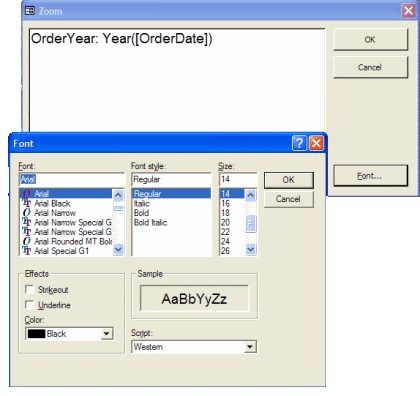
See all Topics access <Doug Klippert@ 3:36 AM
Comments:
Post a Comment
Wednesday, April 19, 2017 – Permalink – View Related FieldsThe whole thingWhen designing a query, you'll often find the need to temporarily view fields beyond the ones you want shown in the final result. To do so, you probably drag the relevant fields to the design grid and then delete them when you're done. However, there's an easier way to view the data that you typically want excluded in the query. To do so:
reset the Output All Fields property to No.  See all Topics access Labels: Forms, General, Reference, Shortcuts, Tips, Tutorials <Doug Klippert@ 3:04 AM
Comments:
Post a Comment
Wednesday, April 12, 2017 – Permalink – Progress bar on FormsShow movementYou can display computer time by using the Microsoft Progress Bar Control. In earlier versions of Access, it can be found by using the "More Controls icon in the Toolbox. In Access 2007 it's under "Insert Active X Control".  Here are the instructions from FunctionX.com: Progress Clock See all Topics access Labels: Customize, Forms, General, Graphics, Reference, Tips, Tutorials <Doug Klippert@ 3:07 AM
Comments:
Post a Comment
Saturday, March 25, 2017 – Permalink – Animated FormsAdd action"Publishing your Access forms on the Web? Add some fun with animated images! For example, say you want to publish a form that allows your users to enter a keyword that will search your software catalog for winter specials; to illustrate this, you’ve embedded an image of two boys hitting the a puck with their hockey sticks." TechRepublic.com See all Topics access <Doug Klippert@ 3:10 AM
Comments:
Post a Comment
Wednesday, August 31, 2016 – Permalink – Close FormsAuto ShutdownHere's how to close a form after it’s used:
Microsoft Support See all Topics access Labels: Forms, General, Reference, Shortcuts, Tips, Tutorials, VBA <Doug Klippert@ 3:06 AM
Comments:
Post a Comment
Sunday, May 15, 2016 – Permalink – Parameters v FormsYou have a choiceThere are a couple of ways to limit the data that is displayed in a Query or in a report. One is a Parameter Query
Also see FontStuff.com: Using Parameter Queries See all Topics access Labels: Forms, Functions, General, Reference, Shortcuts, Tips, Tutorials <Doug Klippert@ 3:12 AM
Comments:
Post a Comment
Tuesday, April 12, 2016 – Permalink – Auto FormJust add DataHighlight a Table in the Objects Table view. Go to the main menu bar and click on Insert. Towards the bottom of the menu, you'll find an entry for "AutoForm" Click on it and Access will create a data entry form based on the selected table. When you close the AutoForm, you will be asked if you want to save changes. Click Yes. (In 2007+ go to Create>Form) The default name will be the name of the table. If you are using Hungarian notation, change the name from "tblCustomers" to "frmCustomers" and click OK. Also see: Hungarian Notation See all Topics access Labels: Forms, General, Reference, Shortcuts, Tips, Tutorials <Doug Klippert@ 3:00 AM
Comments:
Post a Comment
Wednesday, January 06, 2016 – Permalink – Toggle Object ViewsUse the keyboardWhen you are putting a database together you often want to switch between views of Access objects to see the changes. For instance, you'll switch the view to examine a Table in Design view and then back to data view. It is can be faster to switch between views using keyboard shortcuts, rather than the View menu. You can cycle through the views of an open object using the period Ctrl + . or comma Ctrl + , shortcut keys. These shortcuts can be used with tables, queries, forms, reports, and data access pages. See all Topics access Labels: Forms, General, Queries, Reference, Shortcuts, Tables, Tips, Tutorials <Doug Klippert@ 3:42 AM
Comments:
Post a Comment
Tuesday, December 29, 2015 – Permalink – New Default Access Form TemplateSet new standardsYou can change Access's default form. To set up a custom template,
In Access 2007-10, click the Office button in the upper left corner and the click Access Options. The design options are located under Object Designers: Forms/Reports. The same thing can be done with Reports.  (The settings are saved in the Access workgroup information file, not in a particular data base) Also: MeadinKent.co.uk: Making a report template See all Topics access <Doug Klippert@ 3:54 AM
Comments:
Post a Comment
Tuesday, December 22, 2015 – Permalink – Change Properties in Form ViewAlterations on the runAs you work with a form, you will, sometimes, find controls would benefit from minor tweaking. You may want to change the color of a text box, change the font that's used, or remove scroll bars. You may have been told switch to Design view to make changes. However, you can display the property sheets for a control while you're in Form view. To do so, click the Properties on the View menu, Right-click, or press [Alt][Enter]. As in Design view, the displayed properties relate to the control that is selected on the form. The property changes you make are reflected on the fly. You will be prompted to resave your form when you close it. See all Topics access Labels: Customize, Forms, General, Properties, Reference, Shortcuts, Tips, Tutorials <Doug Klippert@ 3:28 AM
Comments:
Post a Comment
Saturday, November 14, 2015 – Permalink – Sort FormsCreate a sorting functionHere is one way to provide your users with a means to reorder fields in forms."Chris Weber develops a solution that allows users to sort the data in their forms (or subforms) that you can add to your application easily.Let Your Users Sort it Out  Scroll down to the bottom of the page. There is a file that can be downloaded with the code. See all Topics access Labels: Forms, General, Reference, Shortcuts, Tips, Tutorials <Doug Klippert@ 3:57 AM
Comments:
Post a Comment
Monday, July 20, 2015 – Permalink – Highlight Form DataShow your positionConditional formatting, in Access, has one more alternative than Excel. Besides "Field Value Is" and "Expression Is", there is "Field Has Focus". You can call attention to the location of the insertion point.
See all Topics access <Doug Klippert@ 3:53 AM
Comments:
Post a Comment
Tuesday, July 07, 2015 – Permalink – Switchboard InflationHave more controlsYou cannot have more than 8 items on a switchboard when you use the Access Switchboard Manager on the Tools>Database Utilities menu. You can, however, modify the Switchboard objects directly.  Here are some step by step instructions: TECH on the Net: Create more than 8 switchboard items Here are some more Switchboard tips: TECHontheNet Switchboard 2007 More Switchboard See all Topics access Labels: Customize, Forms, General, Reference, Shortcuts, Tips, Tutorials <Doug Klippert@ 3:11 AM
Comments:
Post a Comment
Thursday, June 18, 2015 – Permalink – Pictures in FormsIt can still be donePhoto Editor was an Office component prior to Office 2003. In Access/Office 2003/2007 MS Photo Editor was replaced, and Office no longer includes an OLE server for images. To work around this issue, reinstall Photo Editor. To do this, follow these steps:
Also: Ammara.com: Pictures in Access Forms & Reports OLE Object Photo & Image Problems & Solutions  Access MVPS.org: Handle/Display images in forms/database "While it's possible to actually store the images within the database itself as OLE objects, normally it's not the preferred way. When you embed an OLE object in a table, you're storing a lot of overhead as well. This overhead is the information about the object (such as its parent application) that Access needs to store in order to render the object properly."Displaying photos in a form See all Topics access <Doug Klippert@ 3:19 AM
Comments:
Post a Comment
Sunday, June 14, 2015 – Permalink – Dynamic Formatting of FormsGetFocus, Resize, Color DataHere is a description about how to perform three different actions on forms to respond to data entries or changes in events. MSDN.Microsoft.com: Eventful Formatting for Access Forms By Rick Dobson - SmartAccess magazine
See all Topics access <Doug Klippert@ 3:21 AM
Comments:
Post a Comment
Thursday, March 19, 2015 – Permalink – Samples Queries, Reports, FormsExamples to part outThis sample queries database contains examples of useful database queries, including the crosstab query, the union query , and the join query Sample: query topics database Here are some other sample databases. They are all for Access 2000, but the installed base is predominantly in that format. Access 2000 is also the default format for Access 2002 and 2003. Sample Access databases that you can download and adapt
Some forms include:
See all Topics access Labels: Forms, General, Queries, Reference, Reports, Samples, Templates, Tutorials <Doug Klippert@ 3:50 AM
Comments:
Post a Comment
|

