
|
Use your pdf converter to make your pdf files easy! You can now buy software that makes converting pdf to doc possible! Did you know you can even convert pdf to word? Home Page Bloglines 1906 CelebrateStadium 2006 OfficeZealot Scobleizer TechRepublic AskWoody SpyJournal Computers Software Microsoft Windows Excel FrontPage PowerPoint Outlook Word 

Host your Web site with PureHost! 
|
 
Wednesday, April 18, 2018 – Permalink – Entry ChecksA second chanceUnlike Word or Excel, Access does not warn you when data is changed. Unless you make a structural or code change, Access thinks you know what you want to do and allows you to enter or change data and the close the application without a squeak. There is a way around this: "In Microsoft Office Access 2007+, by default, users are not prompted to confirm changes after modifying and saving records on a form. But often you might want to prompt users to confirm their changes before the record is saved. User Prompts (with a video) See all Topics access Labels: Customize, Entries, General, Reference, Tips, Tutorials <Doug Klippert@ 3:19 AM
Comments:
Post a Comment
Saturday, April 14, 2018 – Permalink – Default SaveChoose your own locationWhen you choose to save most Office files, the Save dialog box defaults to the Documents or My Documents folder. (The following directions work in 2007+, but you need to click on the Office button in the upper left corner of the Window)
Change the folder where e-mail messages and attachments are saved If you don't want to change the default, but would like to be able to quickly go to an alternate site, open the Save or Save Attachment dialog box. On the left side of the box is the Places Navigation bar. If you click the Desktop icon, that location will be used to save the file. You can add spots to the bar. Browse to the specific folder. Highlight the folder and click the down arrow beside the Tools option. Select "Add to My Places." The file or e-mail attachment can then be saved where you want. See all Topics access <Doug Klippert@ 3:46 AM
Comments:
Post a Comment
Wednesday, April 11, 2018 – Permalink – Form and DataGood comboIn Access, tables can be a bother to use for data entry. Constructing a Form can make it easier. Here is an MS demo about combining the two: "While working with forms, a split form can be a very useful view because you simultaneously get two views of the form that are connected to the same data source. Demo Form and data 
See all Topics access Labels: Customize, Entries, Forms, General, Reference, Shortcuts, Tips, Tutorials <Doug Klippert@ 3:12 AM
Comments:
Post a Comment
Tuesday, March 13, 2018 – Permalink – Display the Current Record NumberWithout navigationYou may want to remove the navigation buttons from an Access form but still display the current record number. Not the ID or serial number, but the record number that would appear in the navigation box. To provide this feature, you can use VBA to place the form's CurrentRecord value in an unbound text box, and then update the value during the Current event. To utilize this property, add an unbound text box to your form in Design view. Then, on the Event tab of the form's Property list, click the ellipsis or Build button. Choose Code Builder. Add the following code in the Visual Basic Editor: (where MyTextBox is the name of the control that displays the record number.) Now, when you navigate from record to record, the MyTextBox control will update automatically to reflect the current number. See all Topics access Labels: Customize, General, Macros, Reference, Shortcuts, Tips, Tutorials, VBA <Doug Klippert@ 3:09 AM
Comments:
Post a Comment
Saturday, March 10, 2018 – Permalink – Quick Subforms and SubreortsDrag 'em on overWhen you need to create a subform or subreport, you probably use the Subform/Subreport tool from the Toolbox to draw where you want to add the control. You can also create subform and subreports using drag and drop. Simply open the main form or report in Design view, then drag the appropriate form or report from the Database window to where you want the control created. Note that you'll still need to set Link Child Fields and Link Master Fields properties on the new control. See all Topics access Labels: Customize, Forms, General, Reference, Reports, Shortcuts, Tips, Tutorials <Doug Klippert@ 3:32 AM
Comments:
Post a Comment
Tuesday, February 20, 2018 – Permalink – Convert Access Macros to VBAMacros to ModulesBefore Access 2000, the speculation was that Access would lose "Macros" and enter the exclusive world of VBA. It hasn't happened yet. If you have macros in a database that you would like to convert to code, doing so is easy. In Access 97: Right-click on the macro in the Database window and then choose Save As/Export from the shortcut menu. Then, select the Save As Visual Basic Module option button and click OK. You are then given the option of adding error handling functions and comments to the new module. Select the options you want and click Convert. In Access 2000/2002+: Right-click on the macro in the Database window and then choose Save As from the shortcut menu. Enter the name of the module you want to create in the text box and choose Module from the As dropdown list. Next, click OK. You will be given the option of adding error handling functions and comments to the new module. Select the options you want and click Convert. In 2007 go to Database Tools and look in the Macros group. Pearson Informit: Taking More Control of Access By Gordon Padwick. Access 2007 introduced a new type of macros called embedded macros. Embedded macros are macros that are stored on an event instead of as a separate object. Embedded macros support name fix-up and are used extensively through-out our templates. They are largely targeted to information workers that don’t write code but useful for developers that are trying to perform some simple actions. See all Topics access Labels: Customize, General, Macros, Reference, Shortcuts, Tips, Tutorials, VBA <Doug Klippert@ 3:21 AM
Comments:
Post a Comment
Sunday, February 18, 2018 – Permalink – What the ####Truncated NumbersAccess has a new option that will show octothorps when the column is too narrow to display the entire value. When this option is not enabled, you see only part of the values in a column rather than ####. You'll find the selection under Access Options when you click the Office button. Go to Current Database and make your choice. 
See all Topics access Labels: Customize, Entries, General, Reference, Shortcuts, Tips, Tutorials <Doug Klippert@ 3:09 AM
Comments:
Post a Comment
Thursday, February 01, 2018 – Permalink – Resize FormIt's fittingWhen you switch between Design and Form views, the size of the form is dictated by the size of the Design view window, not the size of the form sections. You often need to expand the window to be able to see the rulers and scroll bars in addition to all of the sections. This means you're left with wasted space when viewing the form in Form view, assuming that you forget to shrink the window back down. A solution to this annoyance is to use the Size To Fit Form feature. Simply view the form in Form view and choose Window>Size To Fit Form from the menu bar. If your view of the form is maximized, the menu option will be unavailable and you'll need to click the Restore Window button on the form window to enable the choice. Once Access has resized the form, you can save its current dimensions by clicking the Save button. With Access 2007+ go to the Office button, choose Access Options and click Overlapping Windows. The Size To Fit Form icon will appear on the Home tab. 
See all Topics access Labels: Customize, Forms, General, Reference, Shortcuts, Tips, Tutorials <Doug Klippert@ 3:01 AM
Comments:
Post a Comment
Sunday, December 24, 2017 – Permalink – Null ParameterShow somethingIf a user doesn't specify a parameter value, you can use a wildcard with the parameter in the format Like [Enter Name] & "*" The problem with this is that the query will return records that partially match the criteria. For instance, if users searching for records based on last name enter a parameter value of "Smith" they'll also get the records for Smithers, Smithfield and Smithson. Another problem is that the parameter query will ignore any records where the field being searched contains a Null value when you try to return the entire recordset with a blank parameter. To fix this, set up a query to limit responses to explicit parameter entries, but still allow users to return all records by leaving the parameter blank. If you're searching for LastName, open the query design grid and add LastName to it. In the Criteria row for the field, enter the parameter prompt [Enter Name] Then, in the next blank column of the design grid, enter the same parameter (everything between and including the square brackets) in the Field text box. Finally, in the Or row, enter the criteria Is Null . If you're using any additional criteria for other fields, make sure to copy that criteria to the Or line as well. See all Topics access Labels: Customize, Entries, General, Reference, Tips, Tutorials <Doug Klippert@ 3:56 AM
Comments:
Post a Comment
Monday, December 11, 2017 – Permalink – Change Access RibonOh, Fooey (F U I)"One of the most exciting new developer features that Microsoft Office Access 2007 provides is the ability to customize the Office Fluent User Interface (UI) in your application. Customizing Ribbon in Access 2007 See all Topics access <Doug Klippert@ 3:24 AM
Comments:
Post a Comment
Thursday, November 23, 2017 – Permalink – Zoom Box FontsCustomizeChange the appearance of text in Access' Zoom box Access' Zoom box, allows you to display the contents of a text box in a dialog box for easier editing and viewing. Although viewing long expressions is more convenient in the Zoom box, it is still sometimes difficult to follow what is displayed due to the font Access uses by default. Access 20xx allows you to change the font that the Zoom box uses. To display the Zoom box, select the text box you want to expand and press Shift+F2. Then, just click the Font button, set the options you want, and click OK. The settings you select are used whenever you display the Zoom box during your current instance of Access. However, the next time you start Access the Zoom box font settings will revert to their defaults 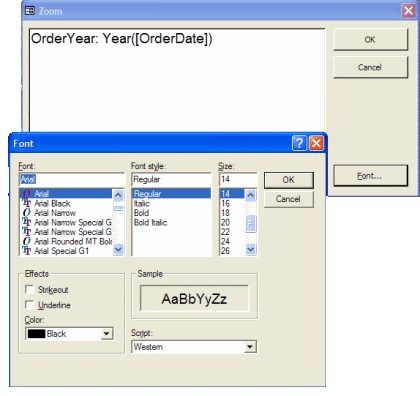
See all Topics access <Doug Klippert@ 3:36 AM
Comments:
Post a Comment
Friday, November 03, 2017 – Permalink – Total FooterSum() it upIf you would like to show a total in the footer or each page of a report, you may have a problem. Access does not allow the SUM() function in the footer. The way around this is to put a SUM() function in an unbound text box in another part of the report. Choose Properties and set the visible property of the control to No. In the footer, create another control using the "calculation" text box as the ControlSource. The Sum() function, as well as the other aggregate (totals) functions can reference only a field and not a control. From the Microsoft Knowledge base: How to Sum a Calculation in a Report How to Display and Total Subtotals from Subreports See all Topics access Labels: Customize, General, Reference, Shortcuts, Tips, Tutorials <Doug Klippert@ 3:12 AM
Comments:
Post a Comment
Thursday, October 19, 2017 – Permalink – Place Controls Where You WantWorks with other apps as wellThe Snap To Grid feature is an invaluable tool for aligning controls when you're designing forms and reports. However, when you fine-tune the placement of some controls, you'll probably want to move some of them to positions that aren't exactly aligned with the design grid. You can temporarily disable the Snap To Grid feature by holding down the [Ctrl] key. Then, you can use your mouse or the cursor arrows to place the controls exactly where you want them. See all Topics access Labels: Customize, General, Reference, Shortcuts, Tips, Tutorials <Doug Klippert@ 3:09 AM
Comments:
Post a Comment
Saturday, October 14, 2017 – Permalink – Hardcopy RelationshipsDocument databaseWhen you're documenting your database applications, you may want to include the same visual diagram of your table relationships that's available through the Relationships window. In Access 2000 thru 2003, this is easy. Simply display the Relationships window as usual and then choose File>Print Relationships from the menu bar. Doing so displays a report preview that you can then print or save. In 2007-13, to just print out a report, find Database tools on the Ribbon and click on Database Documenter. Relationships are at the bottom of the All Object Types tab 
See all Topics access Labels: Customize, General, Properties, Reference, Relationships, Tips, Tutorials <Doug Klippert@ 3:17 AM
Comments:
Post a Comment
Friday, October 06, 2017 – Permalink – Startup Switches for AccessYour choice"This article shows you how to customize the way that Microsoft Office Access 2007+ starts by adding switches and parameters to the startup command. For example, you can have Office Access 2007+ open a specific file or run a specific macro when it starts." Office.Microsoft.com Also: Support.Microsoft.com and VB123.com See all Topics access Labels: Customize, General, Reference, Shortcuts, Tips, Tutorials <Doug Klippert@ 3:47 AM
Comments:
Post a Comment
Friday, September 22, 2017 – Permalink – Flag Access ControlsTag PropertyThe TAG property allows you to associate up to 2,084 characters of text with any form, report, section, or control. This is especially helpful when you want to single out a specific subset of controls. For instance, say that you want to hide certain controls on a form when a user clicks a button. You can flag which controls will be hidden by entering the word "Hide" (or any other consistent word) in each control's Tag property. Then, attach the following code to the command button's Click event procedure: Dim ctl As Control For Each ctl In Me.Controls If ctl.Tag = "Hide" Then ctl.Visible = False End If Next 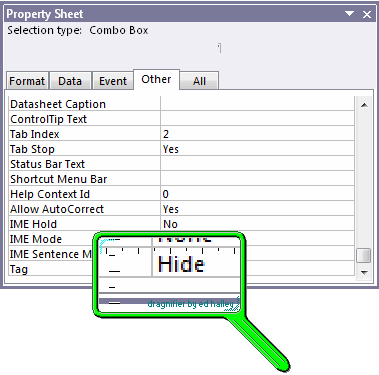
See all Topics access Labels: Customize, General, Reference, Shortcuts, Tips, Tutorials <Doug Klippert@ 3:16 AM
Comments:
Post a Comment
Sunday, September 17, 2017 – Permalink – Auto NumberDon't be smartThere should not be any "intelligence" in an AutoNumber field. It is meant as an index field and not anything else. If the need should arise to reset the field, if your table does NOT contain any records, simply compacting the database again will set the Autonumber field back to 1. Another way would be to delete the AutoNumber field and re-insert it in the table. Here's a long way to start at a specific number.
Also: Access AutoNumber Reset "This is some sample code that shows how to programmatically reset all AutoNumber fields in an Access Database to a correct value (whether it be 0 or the max value + 1). In addition, it contains code for Compacting and Repairing an MS Access Database. This is perfect for people who are working with a complicated Access Database and have experienced AutoNumber bugs!And: Creating an AutoNumber field from code See all Topics access <Doug Klippert@ 3:15 AM
Comments:
Post a Comment
Saturday, August 26, 2017 – Permalink – Access Field HighlightingMore codeThis technique can also be applied to controls like option groups. Instead of using OnGotFocus and OnLostFocus events you must use the OnEnter and OnExit events. In addition, the control group's BackStyle property must be set to Normal to take advantage of the Windows color scheme: Function Highlight(Stat As String) As Integer Dim ctrl As Control On Error Resume Next Set ctrl = Screen.ActiveControl If Stat = "GotFocus" Then ctrl.BackColor = vbHighlight ctrl.ForeColor = vbHighlightText ElseIf Stat = "LostFocus" Then ctrl.BackColor = vbWindowBackground ctrl.ForeColor = vbWindowText End If End Function Take advantage of global constants. Just add the following two statements to a module: Global Const Orange = 39423 Global Const LightBlue = 16776960 Then, set the OnGotFocus and OnLostFocus events for the controls in the following format: Private Sub controlName_GotFocus() controlname.BackColor = Orange End Sub Private Sub controlName_LostFocus() controlname.BackColor = LightBlue End Sub Highlight data on forms by using conditional formatting See all Topics access <Doug Klippert@ 3:17 AM
Comments:
Post a Comment
Friday, August 18, 2017 – Permalink – Zeros - Before and AfterNothing's a problem"When you import data into Microsoft Access, trailing zeros may be lost. This will happen when you import data that is formatted to show these zeros, but where the zeros are not actually part of the data. How to Preserve Trailing Zeros When Importing Data Also: Word — Decimal Point or Trailing Zeros Missing When You Merge Microsoft Access Database Excel — Using a Custom Number Format to Display Leading Zeros See all Topics access <Doug Klippert@ 3:32 AM
Comments:
Post a Comment
Saturday, August 12, 2017 – Permalink – Ripple the RibbonChange the look"Learn how you can create a custom Office Fluent Ribbon for an Access 2007-13 database by using only Office Fluent extensibility markup XML and macros. Customizing the Office Fluent User Interface  Customize the Ribbon See all Topics access Labels: Add-in, Customize, General, Reference, Ribbon, Tips, Tutorials <Doug Klippert@ 3:57 AM
Comments:
Post a Comment
|
